Table of Contents
Introduction
When Android starts draining battery with the screen off, the first thing I do is check the battery report in Settings to see the percentage used by each application. Sometimes it’s useful, but other times it isn’t. Last time I checked, usage looked normal, but at the bottom of the list there was a suspicious entry marked as Other with a very high percentage. I wanted to know which application or service was contributing to that bucket, but unfortunately it wasn’t possible.
When that happens, the best option is to rely on more powerful tools.
A tool still worth trying is Battery Historian, an inspection tool developed by Google that can analyze and show relevant information from ADB bugreports.
It is no longer maintained, and Google suggests to use some alternatives, but Battery Historian is still quite effective and relatively easy to use.
The project’s README provides very easy instructions to run the tool with Docker, but, unfortunately, the Docker image they mention is no longer available.
Luckily, there are unofficial images, I used the one published on Docker Hub by itachi1706.
Android Wakeups
We have a problem and also a tool to study it, that’s a good starting point. But what are we looking for?
The crucial concept here is system wakeups.
In an ideal idle state, when the screen is off, Android tries to keep the device sleeping as much as possible, while still allowing a few vital tasks to run in the background. Wakeups (alarms, jobs, wakelocks) are the mechanism that makes this possible, but if they happen too frequently (especially because of non-essential apps/services) the phone never really stays idle, and battery drain becomes very noticeable.
Requirements
- USB debugging mode enabled on the smartphone
- ADB
- Docker
(1) Enable USB Debugging
The USB debugging mode is in the Developer Options section, which is hidden in the settings and needs to be enabled. To do so, it’s typically enough to go to Settings -> System Information and tap a few times on the Build Number.
Once enabled, you’ll find a lot of settings under the Developer options, among them you need to enable USB Debugging.
(2) Create a report with ADB
There are a couple of ways of installing ADB, I prefer the manual download in the SDK Platform Tools bundle.
Once ready, check if it works properly by running the following command:
adb devicesThe output should look like this (if the smartphone is not yet connected to the PC):
* daemon not running; starting now at tcp:5037* daemon started successfullyList of devices attachedNow, connect the smartphone to the PC via USB. Android should show a request to allow the usage of USB debugging on the detected PC. Accept, then run again the devices ADB command, the output list should now include the smartphone ID:
List of devices attachedXXXXXXXXXXXXXXX deviceThe next step is to create the Android report:
adb bugreport bugreport.zipAfter a while, the report is ready for the analysis.
(3) Analyze the report with Battery Historian
Run the Battery Historian container with Docker:
docker run -p 9999:9999 itachi1706/battery-historian:latestThen open the browser and go to http://localhost:9999
/, select the report archive created with ADB and press the Submit button.
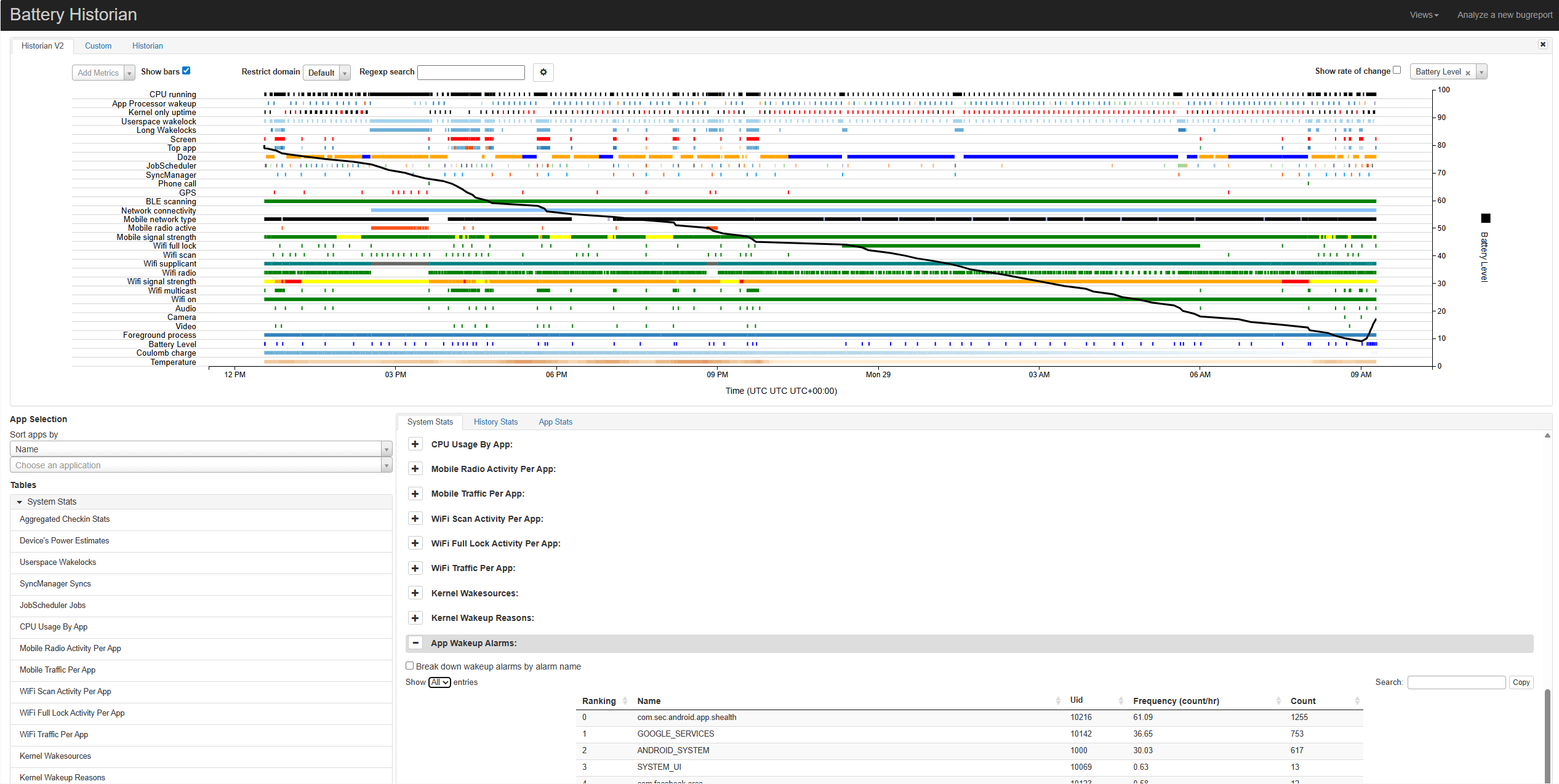
The UI includes a timeline chart showing events and metrics about system services and components. Below there is a table with all the details, and the most interesting view is often App Wakeup Alarms. It shows all the services that triggered a system wakeup. Some services are required and it’s normal to find them in the rankings (like ANDROID_SYSTEM, GOOGLE_SERVICES, SYSTEM_UI, etc.), but there may be something unexpected.
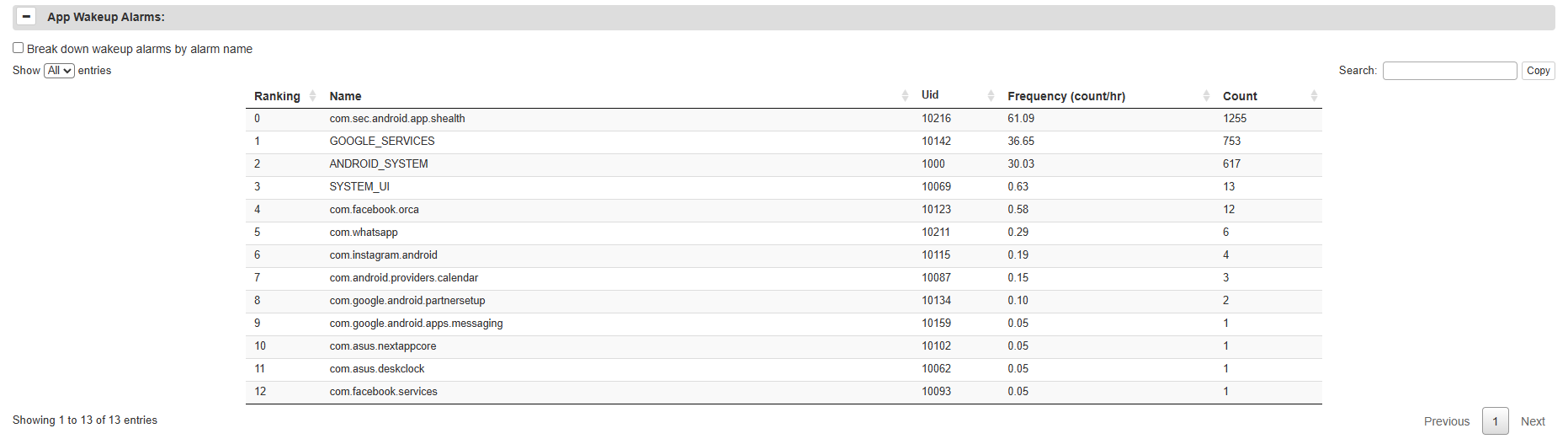
In my case, the top drainer was the Samsung Health app, got it!
A solution could be completely uninstalling the application, but I needed it, so I better find the root cause. The good news is that it’s possible to break down the standings by “alarm name” through the checkbox immediately above the table, providing way more details.
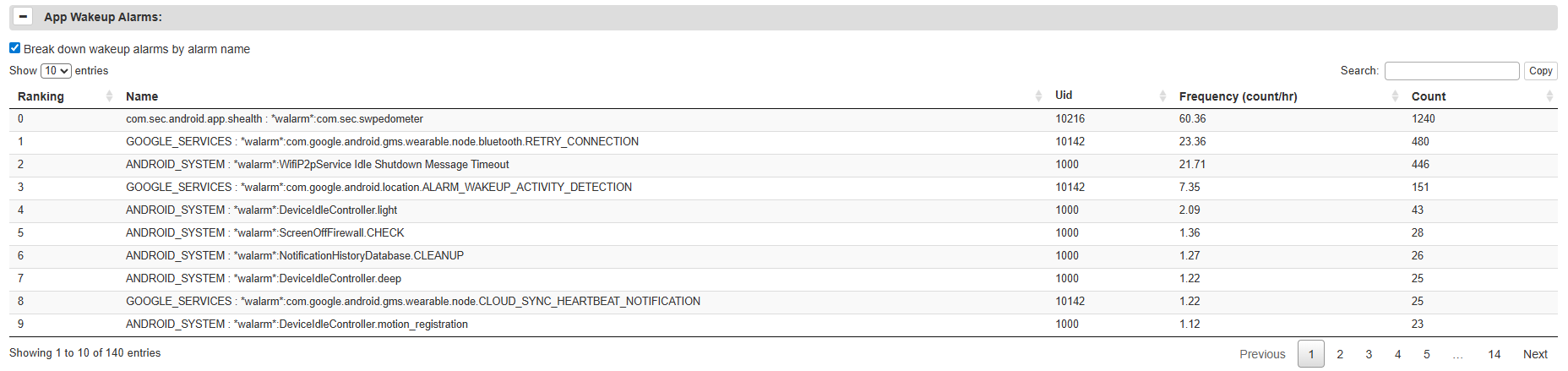
Do you see? It is the background service responsible for the daily step counter. I’m very lucky this time: I don’t need my smartphone taking care of this activity because I already have a smartwatch for that purpose, so I can just disable that service from the application settings. To be even more sure, I completely removed any app permission related to “Physical Activity”.
After this countermeasure, I didn’t experience any battery drain anymore!